Posts tagged tricks


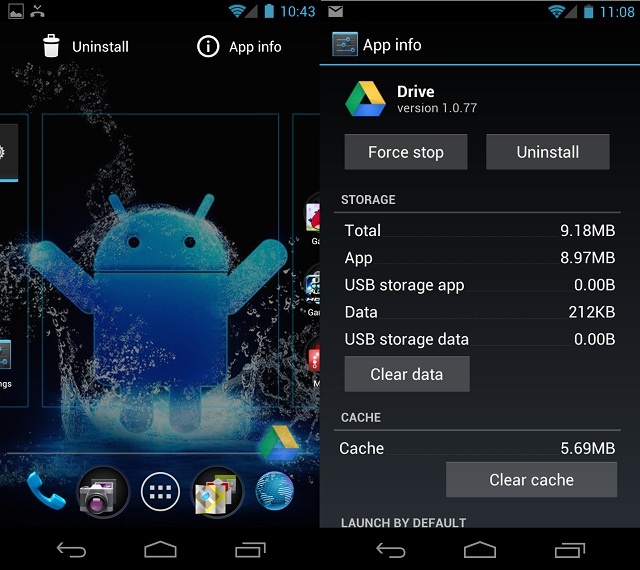
You’ve probably used the drag and drop method countless times and for countless reasons, but did you know with Android 4.0 you can control the majority of app related functions with that same simple gesture? That’s right, with a simple drag and drop you can:

  • Add/Remove an app shortcut to/from your homescreen/launcher
  • Add/Remove an app shortcut to/from a folder/group
  • Move/Arrange app shortcuts on homescreen
  • Instantly uninstall and app
  • Disable a pre-installed app
  • View information about an app


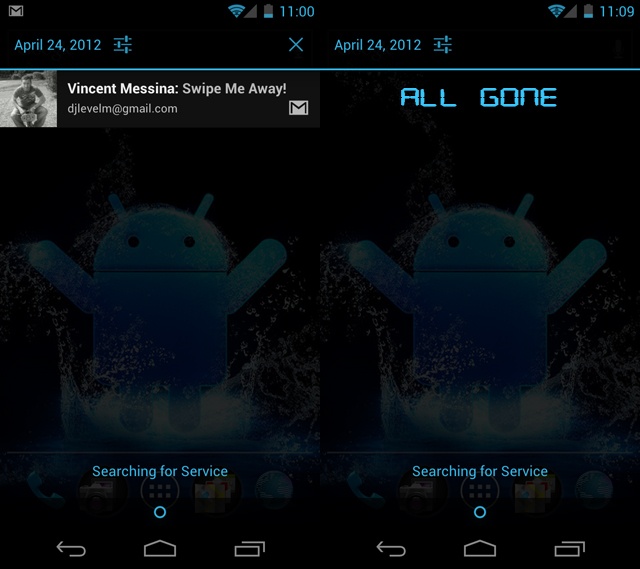
Did you know it’s even easier to dismiss certain facets of information in Android 4.0? That’s right, with Ice Cream Sandwich you can easily swipe away notifications, recent tasks, and even browser tabs. Too many notification — just swipe ’em away. Too many tabs — just swipe ’em away. While it may seem trivial, you’d be surprised at how efficient swiping is versus closing something out with a back button, “close” or “X”. It requires no focus, no thought, just a quick swipe of the finger and unwanted information goes bye-bye.


This one is mainly for all you new Samsung Galaxy Nexus wielding Sprint customers. By now I’m sure you are all up to your elbows in Ice Cream Sandwich, and before information overload sets in, I’d like to suggest five things you should try at least once with your Samsung Galaxy Nexus. Even if you’re a veteran user, you might want to check these out as you may have missed a thing or two.


There are plenty of situations were you may want to keep your screen from automatically rotating its orientation (like typing while laying down). You may not be aware but there’s actually a setting that can be toggled to enable or disable your screen from automatically rotating. Once you know how to find it, you’ll be on your way to enjoying a fixed screen that won’t turn on you while your typing mid-sentence. It’s real easy, all you have to do is follow the directions below:


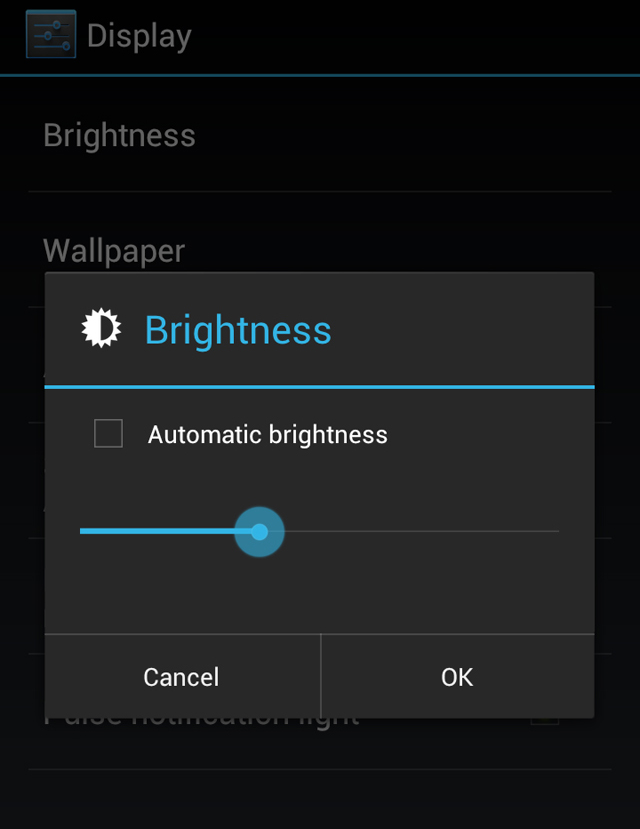
Today we’re going to take a look at how to adjust your screen’s brightness level. Adjusting your screen brightness is one of the most basic Android display settings you’ll find and allows you to compensate for the lack of or over abundance of, surrounding light. Most Android devices will already be set to automatically adjust your screen brightness depending on how much light your Android device’s light sensor detects, but since everyone is different, you may not want your have your brightness dimmed at a particular time, thus making it important to know how to manually adjust it. Knowing how to adjust your brightness levels can also lead to better battery management, something everyone can use. I’ll outline a few steps on how to adjust your screen brightness, followed by a short video showing how to do it. Hopefully this will help you further your knowledge of how your Android device works, and make using it that much easier.