
The BlackBerry Z10: A Promising Start, But Don’t Switch Yet [Review]
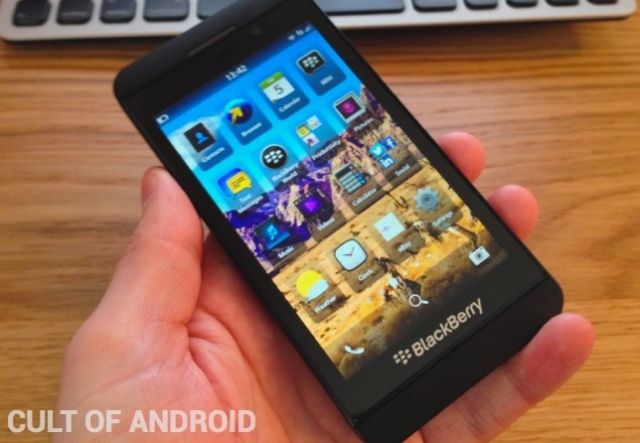
BlackBerry — previously Research in Motion — launched the new BlackBerry Z10 last week, the first smartphone to run the company’s new BlackBerry 10 operating system. Originally set to launch in late 2012, the Z10 has been a long time coming for BlackBerry fans, and it’s a hugely important milestone for the Canadian company.
Many see this as BlackBerry’s last hope of survival in today’s cutthroat smartphone market. It’s been rapidly losing market share to Android and iOS devices over the past five years, and it hasn’t evolved quick enough to put up any sort of a fight. But it’s better later than never.
BlackBerry 10’s here now, and with the help of the Z10 — and later the Q10 — it’s going to be trying to persuade you to give up your iPhone or Android-powered smartphone in favor of a brand new platform. But is it good enough?
I’m a long-time iOS user who recently made the switch to Android, and I’ve been really curious to see if the Z10 is any good. I’ve been using the device almost exclusively since its release; here’s Cult Of Android’s review.
Table of Contents
Page 1: Intro & Table of Contents
Page 2: Hardware: Design
Page 3: Hardware: Display & Cameras
Page 4: Hardware: Microphone, Connectivity, Battery
Page 5: BlackBerry 10: Gestures & Homescreen
Page 6: BlackBerry 10: BlackBerry Hub & Keyboard
Page 7: BlackBerry 10: Stock Apps
Page 8: Verdict & Conclusion
Next Page: Hardware: Design
Hardware
Design
The BlackBerry Z10 is a very attractive smartphone — by far the best looking BlackBerry yet. It loses those old BlackBerry curves in favor of a sharper, more box-like design not too dissimilar to that of the iPhone 5’s. The front of the device is dominated by that large 4.3-inch display, which almost looks as if it extends right to the edges of the device when the display is off.
Above and below the display there’s a thin bezel that extends around the sides of the device. It looks and feels like it’s made of metal, but it’s actually plastic. BlackBerry has kept things simple, concealing things like the microphone and proximity sensors as much as possible.

There are no buttons on the front, but there is a sleep/wake button on the top of the device, and three keys on the right side — two of which control volume, while the one in the middle activates voice control, or plays and pauses your music. There are two small ports on the left side, one of which is for micro-USB charging and syncing, the other is a micro-HDMI port for connecting the Z10 to your TV.
The Z10 is very dark and understated, much like the black iPhone 5.
Beneath the display there’s a shiny BlackBerry logo that glimmers gently in the sunlight. It’s a nice touch, and its one of the few chromatic highlights on the device. Aside from this, the buttons on the sides, and the BlackBerry logo on the back of the device, the Z10 is very dark and understated — again, much like the black iPhone 5. This is something I really like, but if you want something that stands out a bit, there’s also a white model.
The back of the Z10 is removable, as is its battery. These are features that are becoming a rarity on modern smartphones, but they have their advantages. Not only can you swap out the battery with a spare when it dies halfway through your day — more on that later — but it also means the SIM-card and microSD card slots can be concealed in the back, so there’s no need for little trays and slots within the sides of the device.
While the back panel is thin and flexible, it still feels relatively strong, and I wasn’t at all worried about breaking it when pulling it off. It’s coated with a soft, rubberized material that not only provides some extra grip, but also feels wonderful in the hands. It also makes the Z10 feel a little more elegant than other plastic devices — such as Samsung’s Galaxy lineup — and much more comfortable to hold than the iPhone.
The Z10 is 9 millimeters thin, which makes it 0.3mm thinner than the iPhone 4S, 0.1mm thinner than the LG Nexus 4, and 0.7mm thinner than the HTC Droid DNA. Other high-end devices like the Galaxy S III and the iPhone 5 are thinner, but the Z10 certainly doesn’t feel like it’s too fat. And at just 137.5 grams, it’s not at all heavy, either.
Next Page: Hardware: Display & Camerass
Display
The Z10’s display is possibly my favorite feature.
The Z10’s display is possibly my favorite feature — it’s beautiful. It boasts a 768×1280 pixel resolution, at 355 pixels-per-inch. That’s more pixels-per-inch than the iPhone, and more than the HTC One XL, which has one of the best smartphone displays on the market. This means incredibly sharp text, and crisp photos and videos.
Pixels aren’t everything, of course, but the Z10 also offers bright, vivid colors, and good contrast. It’s plenty bright enough to be usable on a sunny day, and the viewing angles are very good. If you tilt the device up or down far enough, you will notice that a yellow tint becomes apparent — but no one uses their smartphone at these angles anyway, so it should never be an issue for you.
It’s worth noting that the Z10’s display is not made from Gorilla Glass like most of today’s smartphones. We’re not sure why BlackBerry chose not to use it, but it makes us wonder whether the Z10’s display will be a little more fragile than other smartphone displays. I didn’t fancy throwing mine on the floor to test it out, so you’ll have to wait for the customary drop tests to find out.
The other thing to note about the Z10’s display is that it’s not flush with the plastic bezel at the top and bottom of the device. Instead it’s recessed between an ever-so-slightly protruding frame. That’s certainly not an issue — at least not for me — but it is somewhat different to other smartphones.
Performance
I’ve found the Z10 to be very snappy and responsive in almost every way.
The Z10 packs a 1.5GHz dual-core Snapdragon S4 processor and 2GB of RAM, which combine to provide a silky smooth experience that rarely stutters or lags. While we’ve become accustomed to quad-core processors in other high-end devices, the Z10 certainly doesn’t feel as though it suffers without one.
I’ve found the device to be very snappy and responsive in almost every way. Switching between apps is a seamless experience, as is opening and using the camera. Flicking through web pages is also smooth, even when loading videos, while gaming in Angry Birds Space or Pix’n'Love Rush — the only two games I’ve installed so far — has been faultless.
If you’re switching from a quad-core smartphone or the A6-powered iPhone 5, I don’t think you’ll notice much of a difference at all.
I have noticed some apps appear to stall a little upon opening, but this happens rarely, and I put it down to early teething problems with the software — more on this below — rather than a hardware performance issue. The same goes for the Z10’s browser performance, which I found to be a little bit slower at loading pages then my iPhone 5 or my Nexus 4. It’s not a dramatic difference, and you may never notice it, but it’s definitely there.
You’ll will, however, notice the Z10’s boot-up times, which are painfully slow at more than one whole minute. If you can, avoid turning the device off as much as possible.
Cameras
The Z10’s rear-facing camera is an 8-megapixel affair that boasts autofocus, an LED flash, and 1080p video recording. I’ve found it to be mostly very decent, but it’s not perfect. I’ve been spoiled by the iPhone’s camera — which is one of the best on a smartphone — and I often have a hard time getting used to others. That’s something you’ll want to bear in mind if you’re thinking of switching from iOS.
As I mentioned above, the camera is snappy, and it will allow you to snap shots in quick succession, and switch between different shooting modes without any delays. In good light, stills taken on the Z10 are bright and crisp, and they offer good contrast and color. You certainly won’t have any problems with photos taken outside on a bright day.
Even in a moderately light environment noise appears to be an issue with the Z10’s photos.
In low light situations, however, the Z10 doesn’t do quite as well. It does an okay job of increasing the ISO enough so that you can actually see something, but photos taken in low light aren’t sharp, and they’re very noisy. Even in a moderately light environment noise appears to be an issue. The Z10 doesn’t offer an HDR mode, either.
The Z10’s flash is pretty good at taking shots up-close, however. In fact, in some cases I’ve found it does a better job than the iPhone 5 and the Nexus 4. Its range isn’t all that great, though, so you don’t want to be too far away from your subject.
The 2-megapixel front-facing camera is capable of recording 720p video, and this is okay, too. Once again, in a well-lit environment it’ll take some pretty nice stills, but they become dramatically worse as the light decreases. You’ll certainly be able to hold some good video calls with the Z10, however, and let’s face it, that’s all you’ll really use the front-facing camera far.
The Z10’s camera software is interesting. It offers a number of scene modes, including auto, action, whiteboard — intended for taking pictures of text — night, and beach or snow. I used it on auto most of the time, and never felt the need to change that.
The Z10’s Time Shift mode is great for taking pictures of people.
You can switch between 16:9 and 4:3 aspect ratios, and you can also tell the rear-facing camera whether to record in 1080p or 720p. This is handy if you’re trying to conserve your storage, and you don’t mind losing a bit of video quality to reduce their file sizes.
The Z10 offers a really nifty Time Shift mode that’s great for taking pictures of people. It captures a number of different shots all at once, and then allows you to dial through all the different faces to choose the best. If your child looks away halfway through the shot, for example, or someone closes their eyes, you can simply dial back to the point at which they were looking at the camera.
One of the things I had trouble getting used to was using the focus. There’s no virtual button to capture shots on the Z10 — you simply tap the screen in any place, or use the volume keys. This can be handy, but it means you can’t tap on different parts of the screen to focus on different areas. Instead, you have to tap and hold on the reticle and then drag it to a different place. This takes time, and could mean you’ve lost your shot before you had a chance to focus on it.
Next Page: Hardware: Microphone, Connectivity, Battery
Microphones & Speakers
I found call quality on the Z10 over 3G — there’s no 4G where I live — to be very good. I was able to hear the person on the other end very clearly, and they had no trouble hearing me, either. Even while walking down a busy street, the call quality on the Z10 was pretty decent.
The speakerphone is okay, but it’s best in a quiet room. It’s not all that loud, which means it becomes a little difficult to hear in a noisy car. You’ll probably be better off using the included headphones while driving instead — though these aren’t ideal for music.
As for the Z10’s main speaker, I’ve been fairly impressed with it — it’s significantly better than the Nexus 4’s speaker, and it’s in a better place. It’s loud enough for watching videos or listening to music most of the time, and the sound quality itself isn’t bad — you can turn the volume up almost all the way before it starts to become distorted.
You certainly won’t be using the Z10’s speaker to hold a disco, but as smartphone speakers goes, it’s not bad.
The Z10’s 3G performance is just as good as — if not better — than the iPhone 5’s.
Connectivity
The Z10 boasts all of the connectivity options you’d expect from a modern smartphone, including Wi-Fi 802.11 a/b/g/n, Bluetooth 4.0, and GSM, HSDPA, and LTE. It also offers NFC, a micro-USB port, and a micro-HDMI port — as I mentioned earlier.
I couldn’t test LTE because it’s still hard to come by in the U.K., but I found the Z10’s 3G performance to be as good as — if not better than — the iPhone 5’s. With a good signal, web browsing is pretty snappy, and even video streaming from YouTube was relatively quick. Of course, this will vary depending on your coverage.
The Z10’s Bluetooth performance has also been good for me; I’ve connected it to a number of Bluetooth speakers around the house, and the Bluetooth system in the car, and found it to be smooth and snappy.
Battery
The Z10’s battery performance has been one of its biggest disappointments so far. I’ve been using it more than I normally would most days — simply because I’ve been road testing it for this review — but even when I gave it a rest and used it as I normally would use a smartphone for a couple of days it drained much faster that I’d expect.
I’ve been charging the Z10 throughout the night, then unplugging it at around 6:30 a.m. on a weekday, and around 7:30 a.m. over the weekend. Under normal circumstances — a few phone calls, some texting, an hour or two of web browsing, and reading and replying to a handful of emails — it’s kept going until the evening, around 8 or 9 p.m. But under heavy use I was having to plug it in around 3 to 4 p.m. Needless to say this is going to be an issue for most users.
The Z10 does have a removable battery, and I’d certainly recommend carrying a spare (fully charged) if you’re going to be on the road for a full day. There’s actually a battery charging accessory for the Z10, which allows you to charge a spare battery while you’re using another in the device. I had wondered why it was necessary — now I know.
I thought the Nexus 4’s battery life was bad, but it’s noticeably better than the Z10’s.
I had felt the Nexus 4’s battery was bad when I first starting using it in place of my iPhone, but it’s noticeably better than the Z10’s. And in comparison with the iPhone, there’s a whole world of difference. I’m hoping this is something BlackBerry can improve with a software update later on; it certainly needs to do something.
Let me give you a quick example: When I woke up at 7:30 this morning, I unplugged the Z10 and used it to check my email, reply to a text message, and to flick through the news headlines on the BBC’s homepage. I got out of bed at 7:42 — so I was using the device for just 12 minutes — and battery life had reduced from 100% to 92%, according to a third-party app I’ve been using.
Next Page: BlackBerry 10: Gestures & Homescreen
BlackBerry 10
As this review is aimed at Cult of Mac and Cult of Android readers, the Z10’s operating system is likely to be the biggest area of interest here. This is the first device to run the new BlackBerry 10 OS, and in comparison with previous BlackBerry platforms, it’s a giant leap forward.
And let’s not underestimate how important this is for BlackBerry — BB10 is the Canadian company’s last shot at clawing back some of the market share it has lost to rivals over the past few years. If the platform fails, it’s hard to see how BlackBerry will continue.
Like the BlackBerry PlayBook OS, BB10 is built upon QNX, and tailored for touch-based devices. This isn’t a rehash of previous BB platforms; it’s a brand new OS that supposedly doesn’t contain a single line of code from its predecessors.
Gestures
Because the Z10 doesn’t have a home button, navigation requires a number of simple gestures. BlackBerry tells you about these in a little leaflet that comes with the device, and once you’ve gotten used to them — which takes all of about 30 seconds — they’re actually a nice way of getting around.
A swipe up from the bottom of the screen wakes the device from sleep and unlocks it, and closes any app you have open. If you swipe up and then towards the right, you’ll be taken to the BlackBerry Hub. What’s nice about this is you can actually “peek” at your Hub and see your notifications without actually going into it — you just perform the same gesture but hold your finger on the display. You can then swipe back down to return to what you were doing.
You can also swipe down in some apps to see additional options, or swipe down from the home screen to see the quick settings toolbar, where you can toggle silent mode, Bluetooth, Wi-Fi, rotation lock, and more.
Unfortunately, it’s never clear where these slide-down menus are available, and it can get a little confusing. For example, I didn’t know the Calculator app had a unit converter and a tip calculator until I performed a downward slide after using it for several days. It’s easy to see how users might miss key features in certain apps if it isn’t clear that they’re hidden away in a drawer at the top.
Again, the gestures themselves are easy to learn, and once you’ve got them they’re like second nature; I actually kept trying to close Android apps on my Nexus 4 with an upward swipe after using the Z10 for a few days. But developers will need to make it clear if they’ve hidden things in different places.
Home Screen & Active Frames
BB10’s home screen has much in common with that of iOS; it’s a relatively simple grid of static icons, which you can tap and hold to move around or place in folders. There’s a status bar at the top that includes the time in the center, your battery indicator — without a percentage — on the left, and your cell and Wi-Fi signals on the right. Other indicators will pop up in this bar from time to time, such as those for NFC, Bluetooth, silent mode, and if you have an alarm set.
At the bottom of the home screen there’s a dock of sorts, but you can’t customize it. There’s a shortcut to the phone app on the left, a shortcut to the camera app on the right, and a shortcut to search — which is just like iOS’s Spotlight feature — in the middle.
The Active Frames screen, which sits to the left of the home screen, is one of BB10’s unique features. When you close an app, it automatically goes to the Active Frames screen. This holds 8 apps at a time, and they automatically close as you open more apps. If you want to close them manually, you can do so by hitting the little cross beneath their preview windows.
Active Frames are great for multitasking, because they allow you to quickly switch between your most recent apps — and in some cases see exactly what you were doing within certain apps when you closed them. But what’s really great is that some of those Active Frames turn into live widgets.
For example, when you have the Calendar app in an Active Frame, you’ll see any upcoming appointments you have. The Weather app will provide you with a brief forecast, Music tells you what’s playing, and even the Phone app will display a little list of your three most recent calls.
I’ve found these widgets to be a really nice touch, but this is an area that needs a little improvement. First, there’s no way of knowing which apps become widgets when open in the Active Frames area, and which just show a preview of what they’re doing. Furthermore, there’s no way to pin or rearrange the Active Frames you have open. That means you can’t keep the Weather widget pinned to the top of the page if you want to — when you start opening other apps, it’ll disappear further down the page until it’s eventually closed automatically.
I’d like to see BlackBerry change this in a future update, because the ability to pin those widgets to the page is a simple thing that would make Active Frames so much more useful. Right now, it’s just a pretty way of multitasking, but it could quite easily become more.
Next Page: BlackBerry 10: BlackBerry Hub & Keyboard
BlackBerry Hub
The BlackBerry Hub is one of BB10’s biggest selling points, and like Active Frames, it’s a unique feature that you won’t find on Android, iOS, or Windows Phone. The Hub is like a unified inbox for every notification you receive, whether it’s a new email, SMS, Facebook message, Twitter mention, BBM, or a missed call — it’s all there.
So with a simple swipe gesture from anywhere, you can see exactly what’s waiting for you. It’s not just a notification center, either — replying to text messages, emails, BBMs and even Facebook messages and friend requests is all done within the Hub itself. In fact, there isn’t actually a dedicated app for email — though there is for text messages and BBM, which is strange.
There are four buttons across the bottom of the Hub — the first shows a slide-out drawer that contains all of your accounts, so that you can look at them individually if you choose to. You can also get to your accounts with a simple swipe to the right, so I’m not sure why BlackBerry felt the need for a button, too. The other three buttons are for search, compose, and an options menu.
When you hit the compose button, you’ll be able to choose from a list of accounts and services you’d like to send a message from. Here’s where you can choose BBM, or text message, or one of your email accounts.
There’s another options menu that you can access by tapping and holding a message. This presents you with functions like reply, forward, mark unread, flag, file, and more. You can also do all of these things from within the message itself, but there are handy shortcuts available within the Hub if you want them.
You can customize the Hub if you want to, so if you don’t like everything to be grouped together, it doesn’t have to be. You can also look at your accounts individually, so if you want to read your emails without being distracted by Facebook messages, that’s not a problem — just swipe to the right while you’re in the Hub, and you’ll see all the accounts you have set up.
This has its advantages, but there are some disadvantages, too. First, the Hub stays in the same place you left it at all times, and that sometimes makes viewing new notifications a bit of a pain. For example, if you were reading an email before you closed the Hub to do something else, and then a text message came in, you are taken back into the email and you have to navigate back to the Hub to read the message.
I’d like to see BlackBerry change this so that you are always taken back to the Hub’s unified inbox, which would make it easier to view your most recent notifications as quickly as possible. Perhaps even better than that would be a system whereby opening the Hub within a certain amount of time after receiving a new notification automatically take you to that notification. So if you receive an SMS, opening the Hub within five seconds of its arrival would automatically take you to that SMS. Apple’s iOS lock screen has a feature like this that works well; when new notifications come in, you can unlock the device within a certain time period to be taken to the app that wants your attention.
I’ve noticed a strange bug in the Hub — it’s only happened twice, but it’s been hugely frustrating. When I receive emails from a certain person, they just don’t open. I tap on them and they show for a split second, but then I’m taken back to the Hub. I have no idea what it is — it could be something about their signature, or the email content, or even the sender’s name that the Hub doesn’t like — but not even a full restart solves it. I had to read these emails on another device.
Despite its shortcomings, I’ve enjoyed using the Hub. It’s another BB10 feature that shows a lot of promise, and I’m sure it’s only going to get better as BlackBerry irons out the little kinks over time.
Keyboard
BB10’s keyboard is terrific. BlackBerry is famous for its keyboards, and it’s proven that they don’t have to be physical to be awesome. It sports a nice layout, and typing is accurate and responsive. Up until now, I didn’t think Apple’s iOS keyboard could be beaten, but BlackBerry’s done it. After just a few hours with the Z10, I was already a better typist on this device than I am on other smartphones — and I’m not a bad touchscreen typist.
The keyboard offers a really great predictive text feature, which gives you suggestions as you type. But these suggestions don’t appear above the keyboard like on Android — they appear above certain keys, and you can swipe up from those keys to insert the suggested word. The keyboard also learns the more you use it, so these suggestions get better over time.
The feature is a little strange at first, but once you get used to it, it makes typing much faster. I tend not to use it a lot for shorter words, but for longer ones it’s great. It’s also really useful for typing with one hand.
Another great feature about the keyboard is that it will support up to three languages at any time — and it automatically recognizes which language you’re typing in, and changes its suggestions to suit. So you can send an email in English, then begin composing another in Spanish without changing a single setting.
Next Page: BlackBerry 10: Stock Apps
Stock Apps
As you’d expect, BB10 comes with a whole host of stock apps that are pre-installed and instantly available when you boot up the device for the first time. I’m not going to go through all of these, because some apps need no explanation — things like Phone and Text Messages are exactly as you’d expect them to be, while Facebook and Twitter are identical to their Android and iOS counterparts. Also, I haven’t been able to use them all (I have no friends with BBM). So instead, I’ll take you through some of the more interesting apps that I have been testing.
Browser
BB10’s built-in browser is just as speedy as you’d expect a mobile browser to be — I had no trouble loading websites in a snap, even those filled with images and videos, and scrolling through them was nice and smooth. It also comes with all of the basic features you’d expect.
There’s only one navigation bar, and it sits at the bottom of the page. It has two buttons — one for accessing your bookmarks, history, and tabs, and another for the options menu — plus an address bar in between. You can also tap and hold links to copy the URL, open them in a new tab, share them, or save them as a bookmark.
BB10’s built-in browser is just as speedy as you’d expect a mobile browser to be.
Within the options menu, you’ll find things like a reader mode, the ability to search a webpage, a reload button, sharing options, a shortcut to the downloads section, and buttons to add bookmarks to the bookmarks page or your home screen. There’s also a settings button in here, and that gives you access to things like desktop mode; your history, cookie, and cache settings; and a private browsing mode.
Surprisingly, BB10’s browser also supports Adobe Flash Player, but you’ll have to enable it before you can use it — it’s not activated by default.
The Browser also has a strange bug, which causes big black boxes to appear on webpages. They seem to appear at random, and sometimes they disappear as you scroll. Other times you need to close the tab and load the page again.
Clock
The Clock isn’t all that exciting, but there are some things I wanted to note. Inside the Clock app, you’ll find a world clock, a stopwatch, a timer, and an alarm. Note that I said “an alarm” rather than “alarms.” That’s because for some strange and impractical reason, you can only set one alarm at a time.
I have no idea whose idea this was, but it’s stupid. I rely on at least three alarms to get me out of bed each morning; the first one almost always gets turned off in my sleep. Now, I know this is just me and that normal people only need one alarm. But why not give us the option to have as many as we want?
You can select as many world clocks as you wish, however.
One of my favorite features in the Clock app shows that BlackBerry can pay attention to the little things — just like Apple. When you’re setting an alarm or a timer, there’s a little dial next to the clock that you can turn to select your desired time. It’s such a simple thing, but it looks great.
The Clock also has a Bedside Mode. This turns the clock black and orange so that it’s not too bright, and automatically turns off your notifications. So you can stick your phone next to your bed and you don’t have to worry about being woken up by incoming emails.
Maps
The Maps app is a custom version of Bing Maps. The interface is relatively simple, but once again, you’ll have to do a little digging to find certain features. When you first open Maps, you’ll be presented with a map of your current location, plus a search bar at the top of the page, and three buttons at the bottom — one for the map, one for My Places, and an options button.
In My Places, you can add three “favorite” places, see your recent searches, and find addresses for your contacts. The options button is confusing, because it changes depending on which section of the app you’re in. While you’re looking at the map, it will allow you to toggle traffic information or clear the map. While in My Places, the options button allows you to specify your favorite locations.
The Maps app also offers voice-guided turn-by-turn navigation, but you find it, you’ll need to first pick a place to navigate to, and then tap the ‘Go’ button that appears at the bottom of the page.
Remember
Remember provides you with both a to-do list and a note-taking app. The great thing about Remember is that it offers Evernote integration, and once you’re signed into your account, you can use the Remember app to access all of your existing notes and create new ones that will be synced back to your Evernote account. There’s no official Evernote app at the moment, but this is the next best thing.
You can also create reminders in here, with due dates, voice notes, or attachments. Unfortunately, there aren’t many options, so you’ll need to wait for a decent third-party reminders app for things like recurring tasks, or location-based reminders.
File Manager
As its name suggests, File Manager is a file manager — you can use it to access almost everything stored on your internal storage or a microSD card if you have one installed. But like Remember, BlackBerry has made File Manager better by integrating a third-party service — in this case Dropbox.
Once you’ve signed into Dropbox, you’ll be able to access all of the files you have stored in the cloud using BB10’s native File Manager app. You can then copy files from the cloud to your device, and vice versa. It works just like the Dropbox integration on your Mac or PC.
Next Page: BVerdict & Conclusion
Third-Party Apps
The Z10 has launched with access to over 70,000 apps, according to BlackBerry, which sounds like a lot. But from what I can tell, most people won’t be interested in about 98% of those. As you’d expect, there’s a vast selection of flashlight apps, plus a lot of apps that aren’t really apps — they just put shortcuts to web apps on your home screen.
It doesn’t matter which platform you’re coming from, or even if you’re a diehard BlackBerry fan, you’re going to be disappointed with the app selection on BB10 right now. And I can’t stress that enough — there’s hardly anything here. You’ll find hardly any of the services you love.
Netflix, Spotify, WhatsApp, Instagram, Rdio, Rhapsody, Flipboard, YouTube, Skype, Flickr — they’ll all missing. And I know things like WhatsApp and Instagram are in the pipeline, but who knows when we’ll see them.
What’s even worse than non-existent apps, however, is those that have been ported from Android. They’re not designed to work under BB10, and that’s instantly noticeable. They actually run in an Android 2.3 Gingerbread emulator, which means they’re sluggish, unresponsive, unstable, and completely disconnected from core BB10 features.
There’s nothing more frustrating than spotting an app you like in BlackBerry World only to find out after you’ve installed it that it’s a dreadful Android port. None of the ports I’ve tested have offered a good experience. In fact, I don’t understand why BlackBerry allowed this to happen.
I have no doubts that the BlackBerry World app selection will improve, but right now, it’s nothing.
I know the company wants to encourage Android developers to bring their apps to BB10, but giving them this option just doesn’t work. It just means that BlackBerry World is becoming filled with poor Android ports that run horribly. And if half the apps you download are like that, the BB10 experience isn’t going to be a good one.
I have no doubts that the BlackBerry World app selection will greatly improve over time, but right now, it’s nothing in comparison to Android and iOS. 70,000 apps is just 10% of the selection Google Play has, and that really shows when you start searching for the apps you love.
Verdict
BlackBerry 10 isn’t ready to be your primary smartphone OS.
The BlackBerry Z10 is a very nice smartphone, and it ticks almost all of the right boxes. It looks good, it has an awesome display, it’s fast and response, and it’s got a pretty decent camera. It’s actually much better than I was expecting. Battery life is a concern, however, and I’m hoping this is something BlackBerry can address with future updates to the OS.
BB10 does a lot of things very well, and it has bags of potential.
But of course, BlackBerry 10 is the real reason why you might consider buying this device, and right now, I don’t think it’s ready to be your primary smartphone OS. I think BlackBerry has made a terrific start — as a first edition of a brand new OS, BB10 is very impressive. It does a lot of things very well, and it has bags of potential.
Some have argued that it’s not really any different to Android or iOS, and in some ways that’s true. But I like what BlackBerry is doing with BB10; things like the BlackBerry Hub, Active Frames, the camera software, and the awesome keyboard all contribute to a good OS. And to someone who’s been using Android and iOS devices for the past five years, it’s nice to have something new.
But if you’re switching to the Z10 from an iPhone or an Android powered smartphone — or even an older BlackBerry — you’re going to be disappointed with the lack of apps. There’s no two ways about it.
Because of this, it’s hard to recommend the Z10 over other smartphones — and to those thinking about switching, you’d be crazy to sell your current smartphone for a Z10 at this point. That will change — BlackBerry World is getting new apps every day, and at some point most of the services you love will be there. But it’s going to take some time.
For now, I’d suggest you hold onto your cash.
Let’s see how things are when the Z10 comes to the U.S. in March — by then, BlackBerry is promising another 30,000 apps, and hopefully some of them will be worth downloading. For now, however, I’d suggest you hold onto your cash.
Killian Bell is a freelance writer based in the UK. He has an interest in all things tech and also writes for TechnoBuffalo. You can follow him on Twitter via 